
how to fix stuttering after windows update usually comes down to one thing: the update changed a driver, a graphics setting, or a background service, and your games are now fighting for stable frame times.
It feels extra frustrating because your PC was fine yesterday, and now a “normal” update turns a smooth 120 FPS into hitching, audio crackle, or random micro-freezes. The good news is you can often narrow this down quickly without reinstalling Windows.
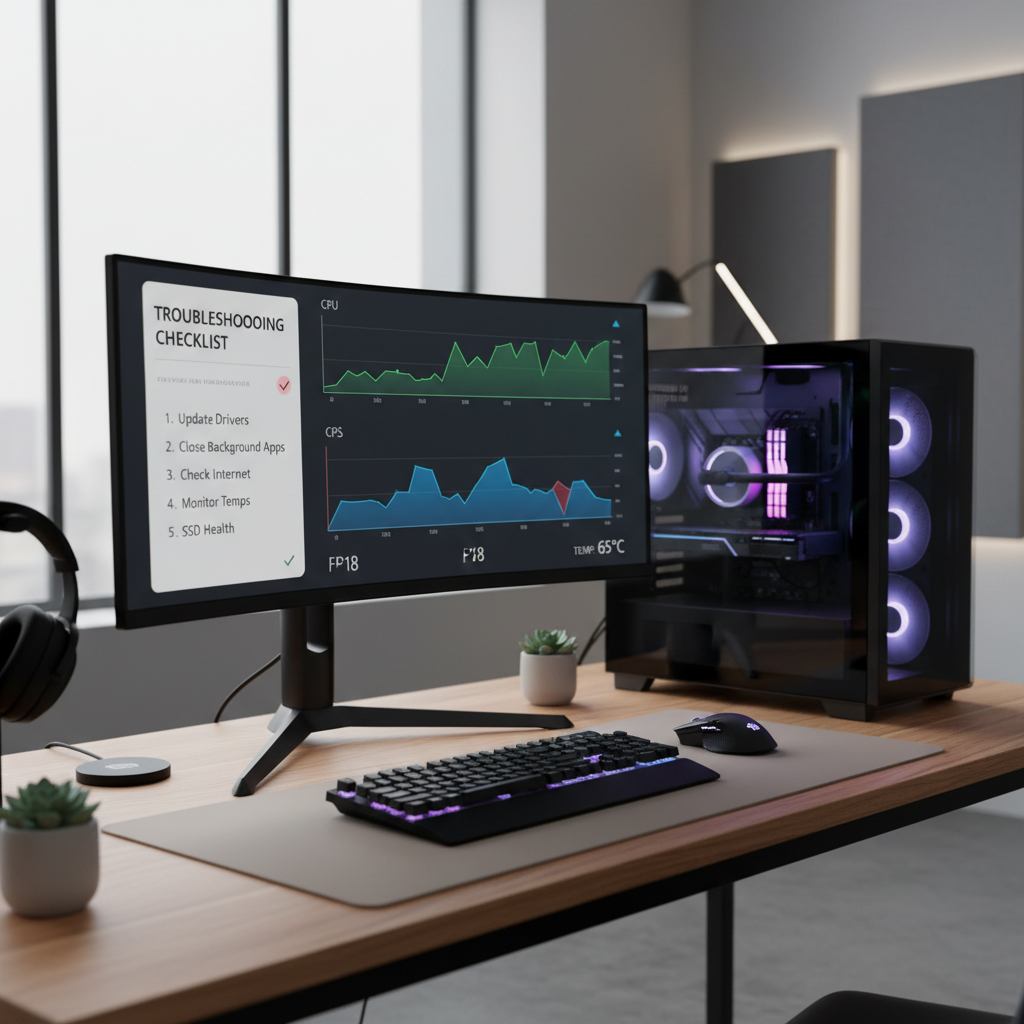
Below is a practical path: confirm what kind of stutter you have, identify the common culprits after updates, then apply targeted fixes in a safe order. You’ll also see when it’s smarter to stop guessing and get help.
What “stuttering” means (so you fix the right problem)
People say “stutter” for a few different issues, and each points to a different fix. Before you change five settings at once, take 2 minutes to label the symptom.
- Microstutter: FPS looks high, but motion feels uneven. Often frame pacing, drivers, overlays, or variable refresh issues.
- Hard hitching: big pauses every few seconds. Often shader compilation, storage delays, background tasks, or Defender scans.
- Input lag spikes: mouse/keyboard feels “sticky.” Often power plans, USB power saving, DPC latency from drivers.
- Audio crackle with stutter: can indicate driver latency issues (network/audio drivers), sometimes after updates.
If you can, reproduce the stutter in the same spot in the same game. Consistent triggers make the root cause easier to spot.
Why Windows updates can cause game stuttering
Windows updates are not just security patches. They can quietly change hardware drivers, power behavior, graphics defaults, and background services.
- Driver swap: Windows Update may install a different GPU driver version than the one you tuned for gaming.
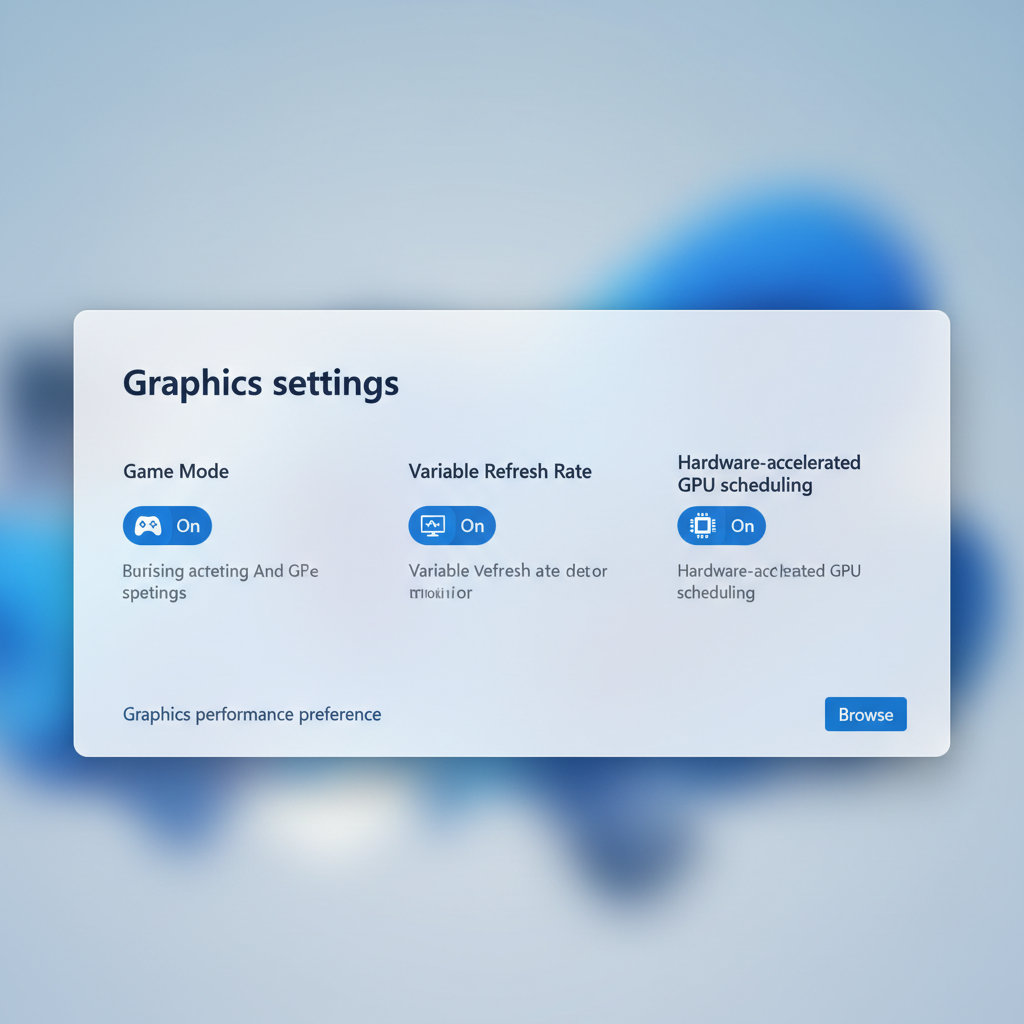
- Settings reset: Game Mode, Hardware-accelerated GPU scheduling, VRR, or display refresh settings can flip.
- New background load: indexing, update cleanup, OneDrive sync, Microsoft Store updates, or Defender scans compete for CPU and disk.
- Compatibility changes: a new build can expose a fragile overlay, anti-cheat interaction, or older chipset driver issue.
According to Microsoft Support, Windows Update can deliver drivers and other updates alongside quality updates, which is convenient, but it also means your “known good” setup can change without you noticing.
Quick self-check: identify your most likely cause in 10 minutes
This checklist helps you decide where to start, instead of doing random tweaks.
- Stutter started immediately after update and affects all games: suspect GPU driver change, power plan, or Windows graphics settings.
- Only one game stutters: suspect shader cache rebuild, game patch, corrupted config, or overlay/anti-cheat conflict.
- Stutter happens during streaming/Discord/browser open: suspect hardware acceleration conflicts, background apps, or RAM pressure.
- Stutter happens when something loads (new area, new match): suspect storage, shader compilation, or real-time scanning.
- Temps or fan behavior changed: suspect power limits, GPU settings reset, or laptop performance mode.
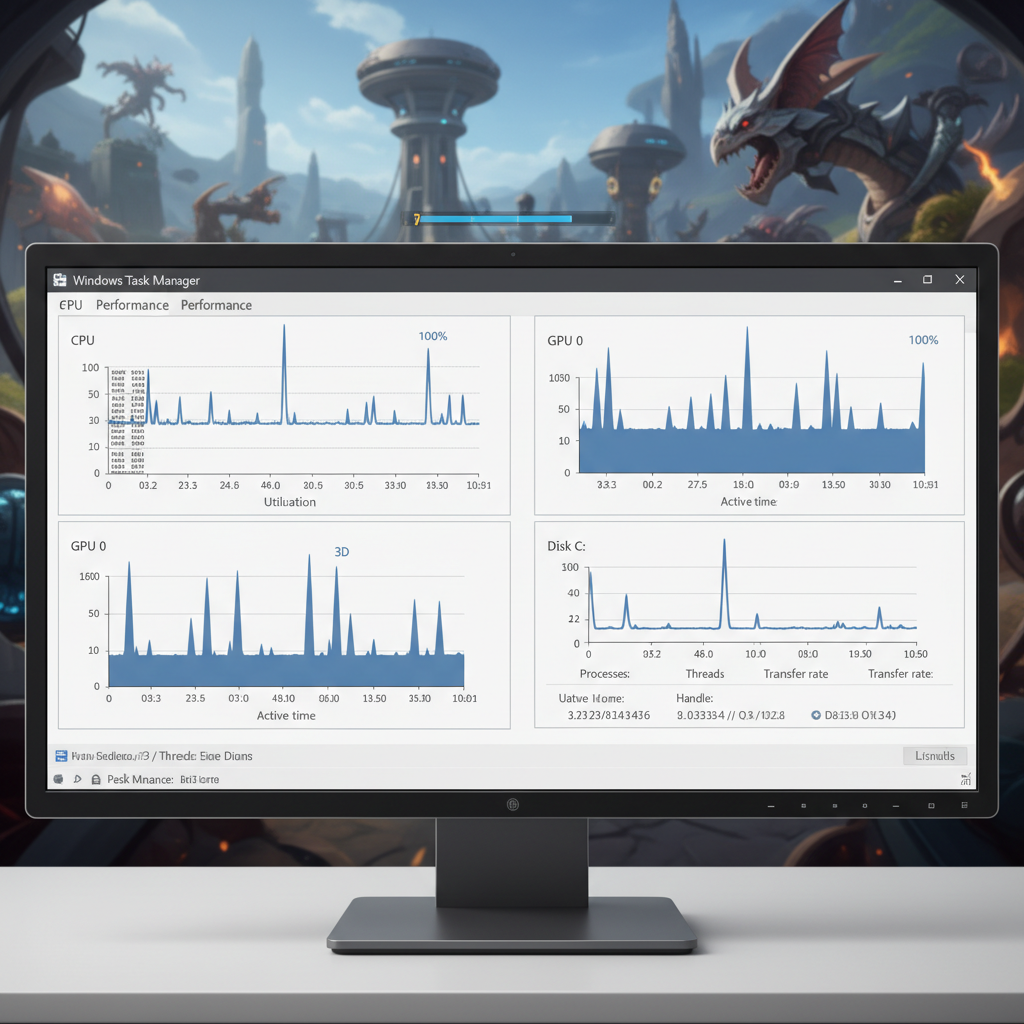
One fast reality check: open Task Manager (Ctrl+Shift+Esc) on a second monitor (or alt-tab) and watch CPU, GPU, Disk, and Memory during a stutter. A disk spike to 100% or a CPU core pinned can be more telling than average FPS.
Fixes that work most often (in a safe order)
When people ask how to fix stuttering after windows update, these are the steps that tend to pay off without creating new problems. Don’t do them all at once; change one thing, test, then move on.
1) Confirm your GPU driver version, then choose a path
Windows may have replaced your GPU driver. Check it, don’t guess.
- Open Device Manager → Display adapters → your GPU → Driver tab.
- If the driver date/version looks new and stutter began right after, consider switching.
Two sensible options:
- Update to the latest driver from NVIDIA/AMD/Intel (clean install option if available).
- Roll back (Device Manager → Roll Back Driver) if the issue clearly started after the driver changed.
According to NVIDIA Support and AMD Support documentation, clean driver installs can help resolve issues caused by corrupted profiles or mismatched components, though results vary by system.
2) Reset Windows graphics toggles that commonly flip
Go to Settings → System → Display → Graphics (and related pages) and verify:
- Hardware-accelerated GPU scheduling (HAGS): try toggling it (test both ways).
- Variable refresh rate (VRR): confirm it matches your monitor and in-game settings.
- Game Mode: usually helps, but if your stutter is new, test on/off once.
These toggles can change frame pacing, which is why microstutter can appear even when FPS stays “fine.”
3) Turn off overlays temporarily (they’re common post-update offenders)
Overlays are useful, but after an update they can become the unexpected bottleneck.
- Disable Xbox Game Bar overlay and background recording (Settings → Gaming).
- Disable Discord overlay for the game.
- Turn off Steam overlay for a quick test.
- Pause third-party monitoring overlays (RTSS/MSI Afterburner), then retest.
If stutter disappears, re-enable one overlay at a time. It’s slower, but it avoids chasing ghosts.
4) Rebuild or clear shader caches (especially if stutter happens after patches)
Some stutter right after updates is shader compilation. That can be “normal” for a while, but if it never settles, you can reset the cache.
- Update the game, then run it once and let it sit in a menu for a few minutes.
- Clear the GPU shader cache via your GPU control panel if available.
- Verify game files in your launcher (Steam/Epic/Battle.net).
Expectation setting matters here: shader-related hitching often improves after a few matches or after visiting common maps.
5) Check power and performance limits (especially laptops)
Updates sometimes reset power profiles. If your GPU or CPU stops boosting, frame-time spikes show up fast.
- Settings → System → Power & battery → set an appropriate power mode (Best performance when plugged in, if you want maximum frames).
- In GPU control panel, confirm the per-game power/performance setting did not reset to “optimal power.”
Targeted fixes by symptom (use this table)
If you want a more direct route, match your symptom to the most likely fix. This is where “how to fix stuttering after windows update” stops being generic advice.
| What you notice | Likely cause | Try this first |
|---|---|---|
| Stutter every few seconds, Disk hits 100% | Background scans, indexing, storage contention | Pause downloads, let updates finish, test with a clean boot |
| High FPS but choppy feel | Frame pacing, VRR mismatch, HAGS/overlay interaction | Toggle VRR/HAGS, disable overlays, cap FPS slightly below refresh |
| Stutter only when alt-tabbing or using a second monitor | Mixed refresh rates, hardware acceleration conflicts | Match refresh rates, disable hardware acceleration in apps, test borderless vs fullscreen |
| Audio crackle with stutter | Driver latency (network/audio), power saving | Update chipset/audio drivers, disable USB selective suspend, test different audio output |
| One game only, especially after patch | Shader rebuild, config corruption | Verify files, reset config, clear shader cache, wait for compilation |
One small but effective trick for frame pacing: if you have a 144 Hz monitor, try capping at 141 FPS (or similar) using in-game limiter or GPU control panel. It can reduce VRR “thrash” and smooth out inconsistent delivery.
Deeper troubleshooting (when the quick fixes don’t stick)
If the stutter survives driver changes and overlay tests, you’re probably dealing with a background conflict or a system component that needs updating.
Do a clean boot test (to catch background conflicts)
This helps you find the “one service” that breaks gaming after updates.
- Use msconfig to hide Microsoft services, then disable the remaining startup services for a test.
- Disable Startup apps in Task Manager.
- Reboot and test the game.
If performance improves, re-enable items in small groups until stutter returns. Annoying, yes, but it’s one of the few ways to identify conflicts reliably.
Update chipset and storage drivers (often skipped)
GPU drivers get the attention, but chipset drivers and storage controller drivers can affect latency and asset streaming.
- For AMD/Intel systems, grab chipset drivers from the motherboard/laptop vendor or the CPU vendor.
- Check SSD firmware if your drive vendor provides a utility.
According to Intel Support and AMD Support, chipset drivers help the OS communicate properly with platform components, and outdated versions can contribute to stability issues in some setups.
Repair system files if the update went sideways
If you saw failed updates, odd crashes, or system instability, run built-in checks:
- Run sfc /scannow in an elevated Command Prompt.
- Then run DISM /Online /Cleanup-Image /RestoreHealth.
These tools won’t fix every stutter, but they can repair corrupted Windows components that indirectly affect performance.
Common mistakes that waste time (or make stutter worse)
- Changing five variables at once: you lose the ability to tell what helped.
- Blind “FPS optimization packs”: they often disable useful services or security features without real gains.
- Ignoring thermals: if the update changed fan curves or power mode, thermal throttling can look like “stutter.”
- Assuming it’s always Windows: some stutter is a game patch, server-side hitching, or shader compilation.
If you’re testing, keep notes: driver version, one setting change, one outcome. It sounds tedious, but it saves hours.
When to roll back the update or ask for help
Rolling back a Windows update can be reasonable if stutter began immediately and you’ve confirmed drivers and overlays are not the cause. Use Settings → Windows Update → Update history → Uninstall updates, and test. If your PC also shows crashes, BSODs, or corrupted files, it’s smarter to pause and get support.
- Seek professional help if you see frequent system crashes, disk errors, or you’re not comfortable changing drivers.
- Contact the game’s support if only one title stutters and it started after a game patch.
- Consider a repair install if SFC/DISM find repeated issues and performance remains unstable.
Key takeaways (so you can act today)
- Most post-update stutter traces back to drivers, overlays, or Windows graphics toggles.
- Use Task Manager to see whether you’re dealing with CPU, GPU, disk, or memory contention.
- Change one thing, retest, and keep the result. That’s the fastest way to a stable fix.
If you want a clean starting point, begin with GPU driver verification, disable overlays, then test VRR/HAGS and power settings. That sequence solves a large share of “it started after Windows Update” cases without risky tweaks.
FAQ
How long does shader compilation stutter last after an update?
It varies by game and GPU. Many titles smooth out after a few minutes or a couple matches, but if it persists for days in the same areas, clearing shader cache and verifying files is worth trying.
Should I uninstall the latest Windows update to fix stuttering?
Sometimes, but it’s rarely the first move. If a driver swap or a setting reset caused the issue, you can fix it without rolling back. Uninstalling updates makes more sense when stutter comes with broader instability.
Why is my FPS high but the game still feels choppy?
That’s usually frame pacing, not average FPS. VRR settings, overlays, and scheduling features can create uneven frame delivery even when the counter looks good.
Does Game Mode cause stuttering on Windows 11?
In many setups it helps, but some configurations react differently, especially when combined with overlays or capture tools. It’s a safe toggle to test both ways, then leave on whichever is smoother.
Can antivirus cause stuttering after updates?
It can, particularly during real-time scanning or when large game files get accessed mid-match. Windows Security scans can also spike disk/CPU. The safer approach is scheduling scans and excluding game folders only if you understand the risk.
What’s the fastest way to diagnose whether it’s CPU, GPU, or disk?
Watch Task Manager graphs during a stutter. A GPU dip with stable CPU can point to driver/settings issues, while disk pegging at 100% often points to background activity or storage bottlenecks.
How to fix stuttering after windows update if it only happens in one game?
Start with that game’s file verification, shader cache reset, and config reset, then disable overlays just for that title. If the timing matches a game patch, keep an eye on the game’s known issues list and updates.
Is switching from fullscreen to borderless worth trying?
Yes, as a test. Some systems behave better in borderless with modern optimizations, while others prefer exclusive fullscreen. Treat it like a diagnostic switch, not a permanent “rule.”
If you’re still stuck and you want a more structured path, create a quick “before/after” log with driver versions, Windows graphics toggles, overlay status, and a 60-second reproducible test spot in-game, it makes troubleshooting far less guessy and easier to hand off to a tech or support team.