
how to fix controller drift on ps5 dualsense starts with one simple idea: don’t assume the stick is “broken” until you rule out dirt, calibration issues, and game-specific settings that can mimic drift.
Drift is frustrating because it ruins precision, and it tends to show up at the worst time, mid-match, mid-boss fight, or right after you finally got used to your sensitivity. The good news is many cases improve with careful cleaning and a few checks, and you can usually tell pretty quickly when it’s time to stop DIY and go warranty or repair.
I’ll walk through the most common causes, a quick self-test checklist, practical fixes you can do at home, and the point where it’s smarter to get Sony support involved. You’ll also get a small “what to try first” table, because drift troubleshooting gets messy when you jump around.
What “DualSense drift” usually means (and what it doesn’t)
Controller drift usually means your character or camera moves even when you’re not touching the analog stick. In many cases the console is receiving a small, unintended input near the stick’s center point.
Two important clarifications help you avoid chasing the wrong fix:
- Game settings can imitate drift: aggressive aim acceleration, low deadzone, or camera smoothing can make tiny inputs look like drift.
- Wireless or signal issues are uncommon causes: if the stick input is “floating,” cleaning and mechanical wear are more likely than Bluetooth interference.
According to Sony Interactive Entertainment (PlayStation Support), keeping the controller updated and resetting it are standard troubleshooting steps for input issues, including stick behavior that feels off.
Why drift happens: the real-world causes you’ll actually see
When people search how to fix controller drift on ps5 dualsense, they’re usually dealing with one of these situations, sometimes two at once.
Dust, skin oils, and debris around the stick ring
This is the “easy win” category. Gunk builds up where the stick shaft meets the outer ring, and it can slightly bias the stick back toward one side.
Wear inside the analog module
The stick uses internal sensors and moving parts that wear over time. If cleaning helps for a day and drift returns fast, wear becomes more likely.
Deadzone too low (game or system feel)
Many shooters ship with tight deadzones for responsiveness. That’s great until the stick ages a bit. Raising deadzone often “fixes” the symptom even if the stick has minor wear.
Firmware or state glitches
Not the most common, but it happens. A controller reset or firmware update can clear weird input behavior that feels like drift.
Quick self-test checklist (2 minutes, no tools)
Before you clean anything, do a quick reality check. This saves time and helps you decide whether you’re dealing with settings, dirt, or hardware wear.
- Does drift happen in multiple games? If it’s only one title, look hard at deadzone/sensitivity settings.
- Does it happen on both sticks or only one? One stick points more toward mechanical wear or debris.
- Does it change after restarting the PS5? If yes, try reset/update steps soon.
- Does drift get worse when you lightly touch the stick cap? That can indicate a “center” problem inside the module.
- Is the stick physically rubbing the shell? You may feel gritty movement or hear scraping, a hint debris is involved.
If you want a quick decision rule: drift across multiple games plus no improvement after reset often points to cleaning or wear. Drift in one game often points to deadzone.
What to try first: the fastest path (table)
People get stuck because they try “advanced” fixes too early. This order tends to waste the least effort.
| Symptom | Try this first | Why it helps |
|---|---|---|
| Drift only in one game | Increase deadzone slightly | Filters tiny stick noise without hardware changes |
| Drift in multiple games, stick feels gritty | Dry cleaning around the stick ring | Removes debris that can bias the stick |
| Drift in menus and games | Reset controller + update firmware | Rules out firmware/state glitches |
| Cleaning helps briefly, drift returns | Deeper clean + consider repair/warranty | Suggests internal wear or contamination |
Step-by-step fixes you can do at home (safe order)
Below is a practical sequence. Stop as soon as the issue improves, you don’t get bonus points for doing every step.
1) Update the DualSense and power cycle basics
- Connect the controller to PS5 with a USB cable.
- Check for controller firmware updates in system settings.
- Fully restart the PS5 (not Rest Mode), then retest.
This step matters more than people expect, because it removes “soft” causes before you touch the hardware.
2) Reset the controller (hardware reset button)
- Turn off the PS5.
- On the back of the DualSense, find the small reset hole.
- Use a paperclip to press and hold for about 5 seconds.
- Pair again with the USB cable.
According to Sony Interactive Entertainment (PlayStation Support), the reset button is a supported troubleshooting step for controller issues, including unresponsive or abnormal behavior.
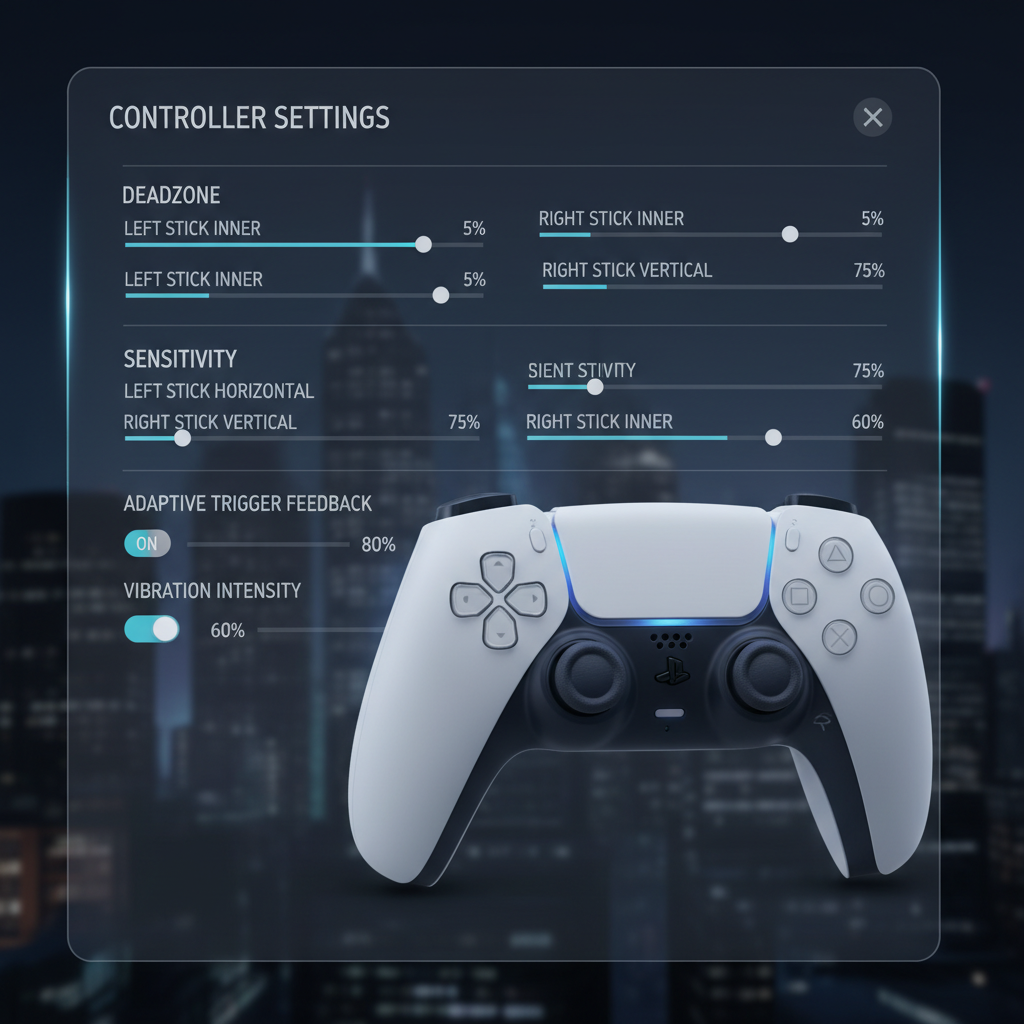
3) Adjust in-game deadzone (the “practical fix”)
If you’re trying how to fix controller drift on ps5 dualsense for shooters, this step often brings immediate relief.
- Find deadzone or inner deadzone settings.
- Increase in small increments, test for 30–60 seconds, then adjust again.
- Avoid cranking it high unless you must, too much deadzone can make aiming feel sluggish.
No universal number exists because drift severity and game input curves vary. You’re aiming for “no drift, still responsive.”
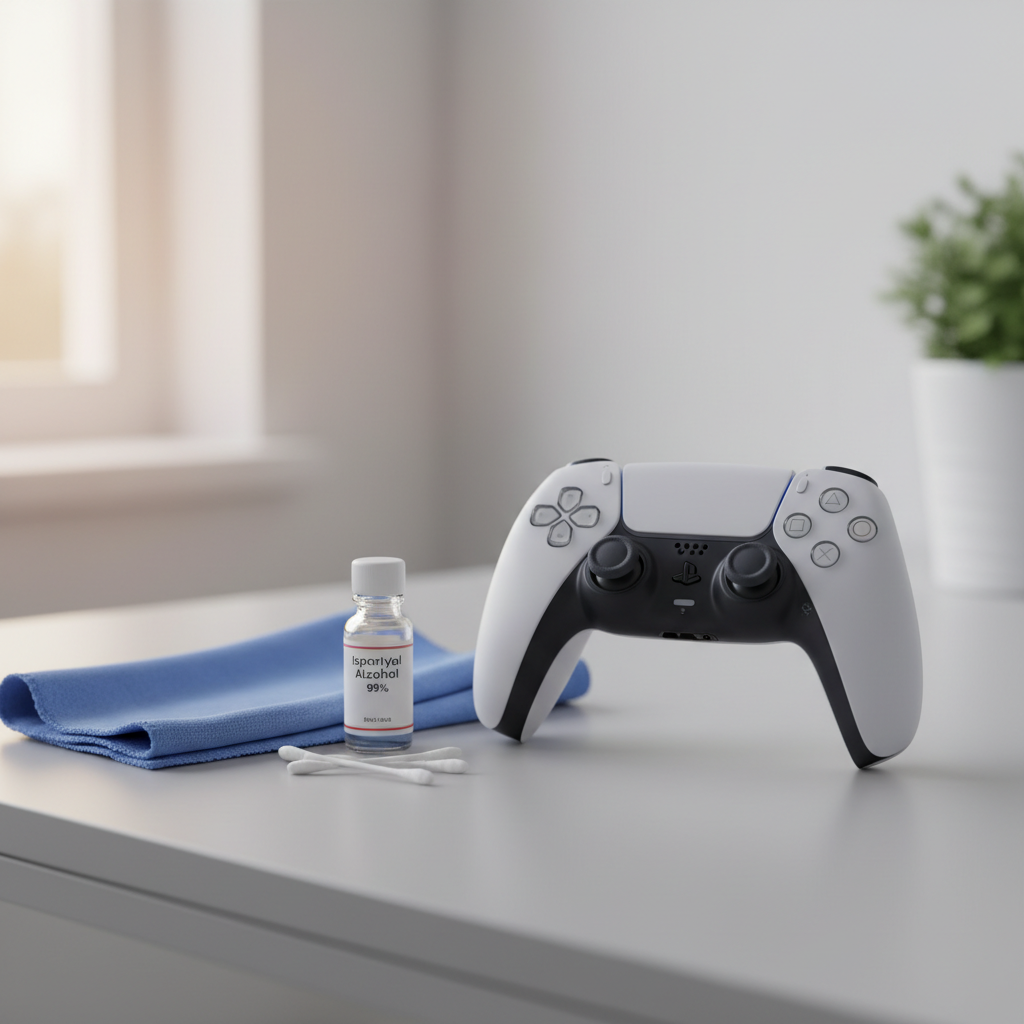
4) Dry clean around the stick (low risk, often enough)
- Wash and dry your hands, oils make things worse.
- Rotate the stick in circles, gently pull it to each edge.
- Use a dry microfiber cloth to wipe around the stick base.
- Use compressed air in short bursts around the stick ring, keep the can upright.
If you see visible dust “lifting” from the ring, retest before doing anything wetter.
5) Deeper clean with isopropyl alcohol (careful, minimal)
This is where people get sloppy. You want small amounts, not a soak.
- Use 70% or 90% isopropyl alcohol, applied to a cotton swab, not poured.
- With the stick held to one side, lightly swab the exposed gap at the base.
- Rotate and repeat around the ring, then let it air-dry before powering on.
If you’re not comfortable, don’t force it. Alcohol can help remove oils and grime, but overuse can push debris deeper or affect plastics over time.
Common mistakes that waste time (or make drift worse)
- Using WD-40 or oily lubricants: they attract dust and can create a sticky mess inside the stick module.
- Blasting compressed air too close: you may shove debris inward instead of out.
- Jumping to disassembly immediately: opening the controller can complicate warranty claims, and it’s easy to damage ribbon cables.
- Overcorrecting deadzone: it can hide drift but make fine aim harder, especially with snipers or racing games.
Also, don’t overlook the boring explanation: sometimes a stick cap gets slightly torn or loose and starts rubbing the shell, and it feels like input drift when it’s really friction.
When it’s time for repair, warranty, or a replacement
How to fix controller drift on ps5 dualsense has a ceiling. If you hit it, pushing harder tends to cost more time than it saves.
- Drift returns within hours or a day after cleaning, especially if it worsens over time.
- The stick “centers” inconsistently, you can feel it catch or fail to spring back smoothly.
- Both sticks show drift and resets/updates change nothing, that points to wear or contamination beyond the easy fixes.
At that point, consider Sony support or a reputable local repair shop. According to Sony Interactive Entertainment (PlayStation Support), you can check warranty status and start a repair request through their official support flow, and that’s typically the cleanest path if the controller is still covered.
If you’re out of warranty and you’re deciding between repair vs replacement, a good rule is: if drift is mild and deadzone tweaks keep it playable, wait. If drift affects menus and constant movement, repair or replace becomes less painful.
Practical “keep it from coming back” habits
You can’t prevent all wear, but you can reduce how quickly grime builds up.
- Store the controller where it won’t collect dust or pet hair, a drawer beats an open coffee table.
- Do a quick wipe around the stick ring weekly if you play often.
- Avoid eating greasy foods while gaming, it sounds preachy, but it shows up around the sticks fast.
- If a game allows it, keep deadzone slightly above “twitchy” settings, especially for older controllers.
Conclusion: the simplest next step
If you’re dealing with drift today, start with a reset and firmware update, then check deadzone in the game you notice it most. If the issue shows up everywhere, do a careful clean around the stick base, and only move to isopropyl alcohol if dry cleaning doesn’t change anything.
If none of that sticks, it’s probably not a settings problem anymore, and getting a repair or warranty claim going is the more predictable route. Pick one step, test for a few minutes, then move on, that approach beats random tinkering every time.
FAQ
Why does my DualSense drift only in Call of Duty (or only in one game)?
Many games ship with low default deadzones for fast response. A small increase often removes drift without affecting your aim too much, but the “right” value varies by controller wear and your sensitivity.
Can a PS5 controller update fix stick drift?
It can, especially if the behavior comes from a firmware glitch or odd pairing state. It won’t usually fix mechanical wear, but it’s worth doing early because it’s quick and safe.
Is it safe to clean a DualSense with isopropyl alcohol?
Usually, in small amounts on a swab, avoiding soaking. If you’re unsure or the controller is under warranty, you may prefer to stop at dry cleaning and go through official support instead.
Does resetting the DualSense delete anything important?
It resets the controller’s internal state and pairing, so you’ll need to pair again. It does not erase saved games or PS5 account data.
How do I know if drift is hardware wear versus dirt?
Dirt-related drift often improves immediately after cleaning and feels “gritty.” Wear tends to come back quickly, and the stick may not return to center consistently even when it feels clean.
Should I open the DualSense to fix drift?
Only if you’re comfortable with small electronics and you accept the risk. Disassembly can complicate warranty support, and many people damage clips or cables. In lots of cases, it’s not necessary.
Can I just increase deadzone and ignore the problem?
If the drift is mild, that’s a reasonable workaround. If you’re pushing deadzone so high that aiming or steering feels delayed, it’s usually a sign you’re masking a bigger issue.
If you’re trying how to fix controller drift on ps5 dualsense but you’d rather not guess, it can help to follow a simple troubleshooting order and decide early whether the controller is still under warranty, that decision alone often saves an evening of trial and error.