
how to fix high temperature while gaming usually comes down to two things: your system can’t move heat out fast enough, or the game settings push your CPU/GPU harder than your cooling setup can handle.
If you ignore it, you often get stutters, sudden FPS drops, loud fans, and in some cases shutdowns that feel “random” but really aren’t. Heat also tends to magnify other weak links, like dusty filters, weak case airflow, or a laptop sitting on a soft surface.
This guide helps you separate normal “gaming warm” from “this will throttle,” then gives practical steps you can do today, plus the few situations where it’s smarter to stop and ask a shop or the OEM for help.
What “too hot” means for CPU/GPU while gaming (and what’s normal)
There isn’t one universal “bad temperature,” because it varies by hardware model, laptop vs desktop, and even how manufacturers set boost behavior. Still, you can use a few practical ranges to guide decisions.
- GPU temps: Many modern GPUs sit in the 70–85°C range under load. Sustained temps in the high 80s to 90s often trigger louder fans and can lead to thermal throttling depending on the card.
- CPU temps: Gaming loads can spike quickly. It’s common to see short bursts into the 80–90°C range on some CPUs, especially in small cases or laptops. Sustained high temps plus performance drops are the real red flag.
According to Intel, many processors are designed to protect themselves by reducing frequency when approaching their maximum junction temperature. In plain terms, when temps climb, your CPU may slow itself down to avoid damage, and you feel it as FPS dips.
What matters most is the combination of temperature + symptoms: clock speeds dropping, GPU utilization swinging wildly, or the game hitching when the scene gets busy.
Why temperatures get high while gaming (real-world causes)
When people search how to fix high temperature while gaming, they often assume it’s “bad paste” or “my cooler is broken.” Sometimes, yes. More often it’s a pile-up of small issues.
Airflow and dust (the boring culprit that wins a lot)
- Dusty front filters or radiator fins reduce airflow more than most people expect.
- Fans installed in odd directions can trap hot air, especially in compact cases.
- PC tucked into a tight desk cubby recirculates warm exhaust.
Aggressive boost behavior and power limits
- Modern GPUs/CPUs boost until they hit thermal or power limits, so “running hot” can be the default behavior under heavy loads.
- Motherboard “auto” settings sometimes push extra voltage, which turns into heat.
Game settings that hit the CPU or GPU disproportionately
- CPU-heavy: high frame caps, large multiplayer lobbies, simulation-heavy titles.
- GPU-heavy: ultra textures, ray tracing, high resolution scaling.
Laptops: chassis limits and intake blockage
- Soft surfaces block intakes, then everything ramps and still can’t breathe.
- Shared heatpipes mean a hot GPU can raise CPU temps and vice versa.
Quick self-check: identify which situation you’re in
Before you change settings at random, do a short check. It keeps you from “fixing” the wrong thing.
- Do temps rise immediately (within 1–3 minutes)? Often airflow, fan curve, or cooler contact issue.
- Do temps creep up over 15–30 minutes? Case heat soak, weak exhaust, dusty filters, or high ambient room temp.
- Do you see FPS drops when temps peak? Likely throttling, confirm by watching clock speeds while gaming.
- Is CPU at 90–100% but GPU low? CPU bottleneck or uncapped FPS driving CPU hard.
- Is GPU at 95–100% constantly? GPU-bound settings or resolution too high for your cooling/noise goals.
- Fans are loud but temps still high? Air can’t move (dust, blocked intake, poor airflow path), or the cooler can’t transfer heat efficiently.
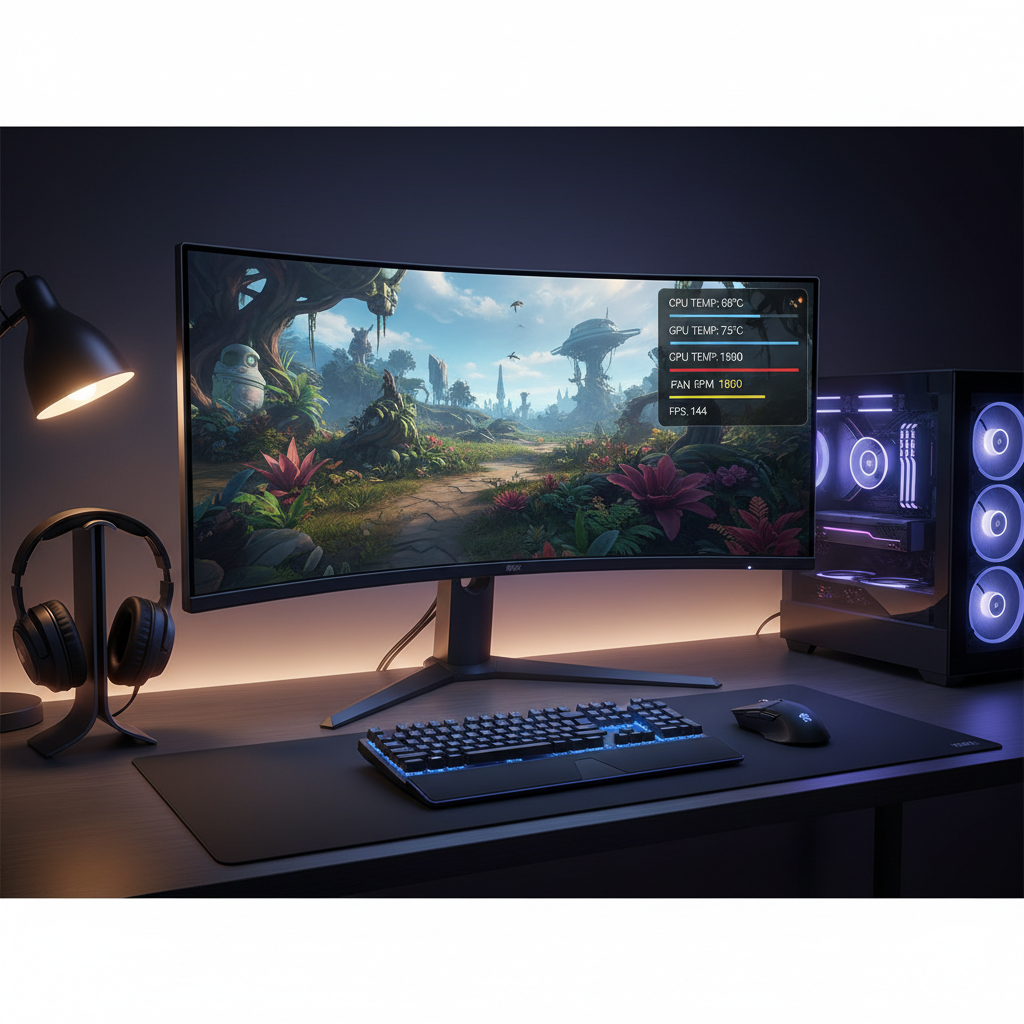
If you only do one thing, add an on-screen overlay for CPU temp, GPU temp, clock speeds, and utilization. Without that, it’s guessing.
Fixes that work most often (start here)
These steps are the highest impact and lowest risk. They also apply whether you’re on desktop or laptop, with small adjustments.
1) Clean and restore airflow
- Power down, remove front/bottom dust filters, and clean them gently.
- Blow dust out of heatsinks and radiators. Hold fans in place while cleaning so they don’t spin excessively.
- Make sure the PC has a few inches of clearance on intake and exhaust sides.
2) Check fan direction and fan curves
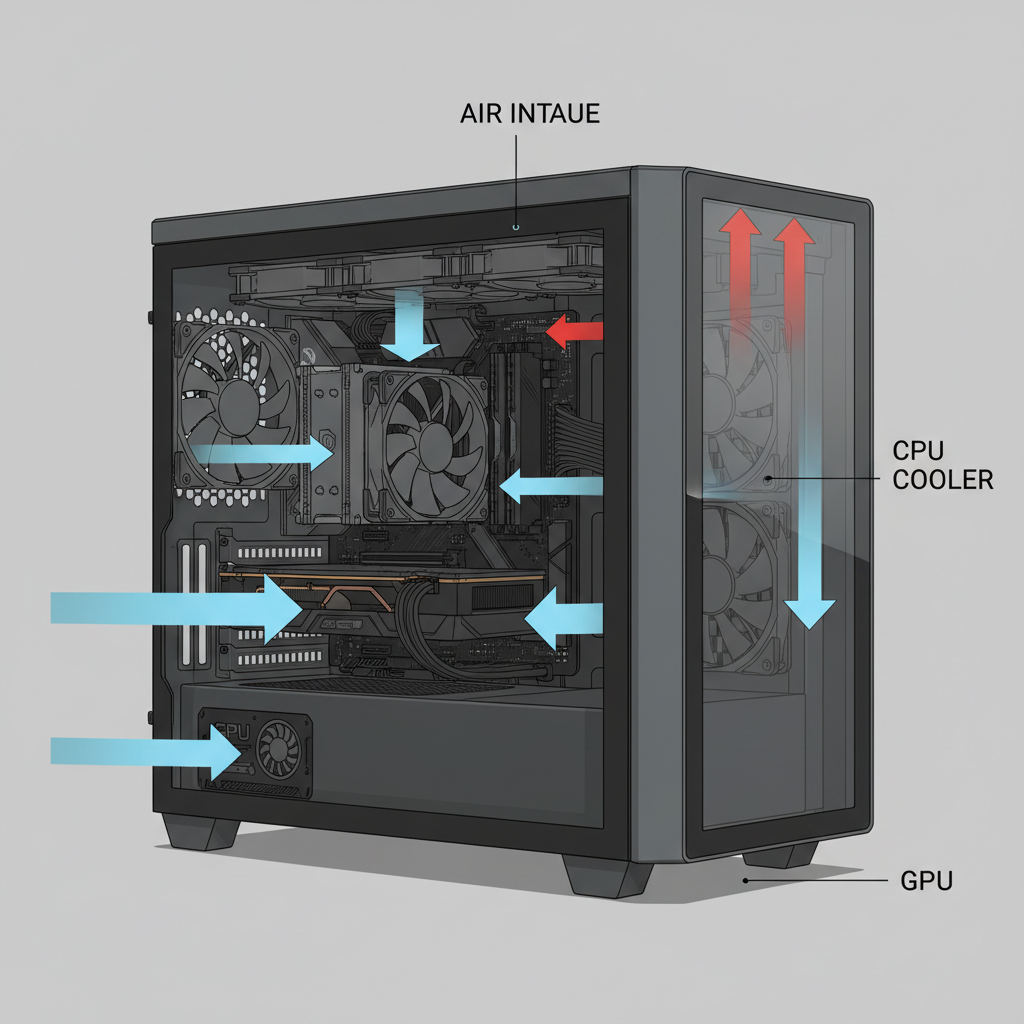
- Typical setup: front/bottom intake, rear/top exhaust.
- Set a fan curve that ramps earlier. A common mistake is waiting until 85–90°C to ramp aggressively.
3) Cap FPS (this is underrated)
If you run uncapped FPS in menus or lighter scenes, the GPU and sometimes CPU will push maximum boost for “free frames,” and temps climb for no real benefit.
- Cap FPS to your monitor refresh (or slightly below, like 141 on a 144Hz display).
- Use in-game limiters first, then driver-level limiters if needed.
4) Reduce the settings that generate the most heat per visual gain
- Ray tracing: big heat cost, try one notch down or off.
- Resolution scaling: drop from 100% to 90% before lowering many other options.
- Shadows: often expensive, especially at ultra.
Targeted solutions: CPU vs GPU vs laptop-specific
Once you know which component runs hottest, you can be more surgical. This is where many “generic” guides fall short.
If your CPU runs hot
- Check cooler mounting pressure: uneven mounting can cause fast spikes. If you’re not comfortable re-mounting, a shop can do it quickly.
- Consider a modest undervolt: many CPUs can run the same performance with less voltage, meaning less heat. Go slowly, stability-test, and keep notes.
- Adjust power limits (desktop): lowering long-term power limits can reduce sustained temps with minimal gaming impact.
If your GPU runs hot
- Undervolt the GPU: often the best temp/noise improvement per minute spent. You’re reducing voltage at a given clock target, which cuts heat.
- Set a custom fan curve: accept slightly more fan noise to avoid 85–90°C sustained temps.
- Improve case intake: GPUs suffer when they re-ingest their own hot exhaust in tight cases.
If you’re on a laptop
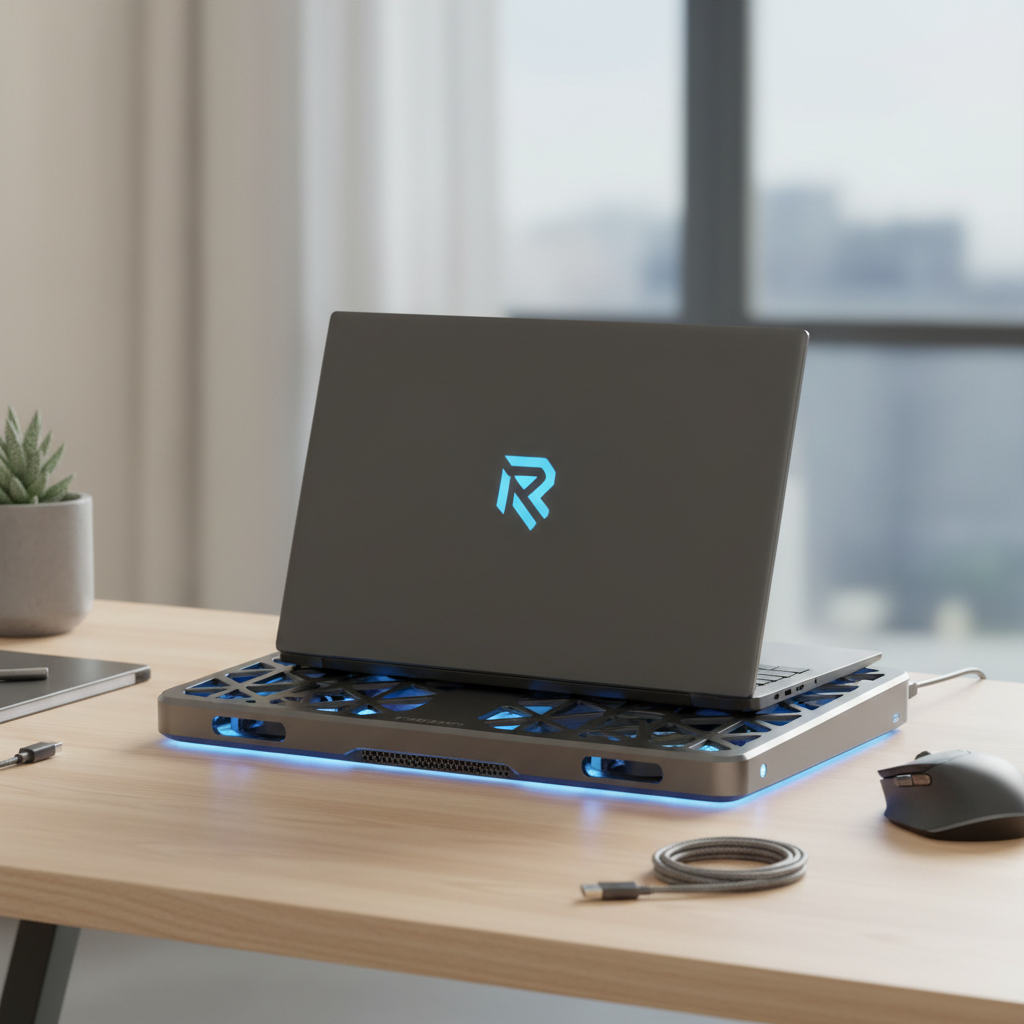
- Use a hard surface, clear the intake area, and consider a cooling pad if airflow is clearly restricted.
- Use “balanced” or “performance” modes thoughtfully. Max performance modes often add heat faster than they add FPS.
- If supported, a mild CPU undervolt or OEM thermal modes can help, but options vary by model.
Practical “do this now” plan (30–60 minutes)
If you want a simple sequence that usually gets results, run this like a checklist and stop when temps become reasonable and stable.
- Step 1: Turn on an overlay for temps, utilization, and clocks, then play 10 minutes and note peak temps and whether FPS dips.
- Step 2: Clean filters and vents, confirm fans spin and airflow direction makes sense, then re-test.
- Step 3: Cap FPS and lower the one or two biggest “heat settings” (often ray tracing, shadows, or resolution scaling), then re-test.
- Step 4: If still hot, apply a conservative GPU undervolt or adjust CPU power limits, then re-test and watch for crashes.
For many setups, you’re not chasing the lowest number, you’re chasing stable clocks and consistent frame pacing.
Cheat sheet: symptoms, likely causes, and what to try
Use this table as a quick map when you’re not sure what lever to pull next.
| What you notice | Likely cause | Try this first |
|---|---|---|
| Temps spike fast after launching a game | Cooler contact issue, fan curve too late, blocked intake | Check airflow path, set earlier fan ramp, inspect cooler mounting |
| Temps rise slowly over time | Case heat soak, weak exhaust, high room temp | Improve exhaust, add intake, move PC for better ventilation |
| FPS drops when temps peak | Thermal throttling | Cap FPS, lower heavy settings, consider undervolt |
| GPU at 99% all the time and hot | GPU-bound workload | Lower resolution scaling, reduce RT/shadows, undervolt GPU |
| CPU near 100%, GPU low, CPU hot | CPU bottleneck, uncapped FPS | Cap FPS, close background tasks, adjust CPU power limits |
Common mistakes that waste time (or make temps worse)
- Cranking fans to 100% without fixing airflow: noisy and often ineffective if intake is blocked.
- Replacing thermal paste as the first move: it can help, but usually after you confirm dust/airflow and settings.
- Stacking “performance” tweaks: overclocks, high voltage, max power limits, and uncapped FPS all at once makes troubleshooting impossible.
- Ignoring ambient temperature: a hot room can shift everything upward, and the PC isn’t “broken” because summer arrived.
According to NVIDIA, GPU Boost behavior dynamically adjusts clocks based on power, temperature, and workload, so a small thermal improvement can translate into more stable performance, not just a prettier temperature number.
When to stop DIY and get professional help
Heat troubleshooting can be simple, until it isn’t. Consider a repair shop or OEM support if any of these show up.
- System shuts down under load, or you smell burning or see discoloration near power connectors.
- Fans grind, stall, or report erratic RPM, suggesting a failing fan bearing or controller issue.
- Repeated crashes after undervolting even with conservative settings, which may point to other instability.
- Laptop temps remain extreme after cleaning vents and using a hard surface, because internal dust or dried paste may require disassembly.
If you’re worried about safety, especially with power connectors or swollen batteries, it’s reasonable to stop and consult a qualified technician.
Conclusion: keep temps stable, not perfect
how to fix high temperature while gaming is mostly about getting your cooling and settings to match your hardware’s reality, clean airflow, sensible FPS caps, and a couple targeted tweaks usually beat dramatic rebuilds.
Pick two actions today: cap your FPS and clean/restore airflow, then measure again with an overlay. If temps still sit high and performance dips, move to a conservative undervolt or power-limit adjustment, and keep changes small so you can tell what actually worked.
FAQ
How do I know if my PC is actually overheating or just running warm?
Look for symptoms, not only the number: clock speeds dropping, FPS dips, stutters, or shutdowns. Warm but stable performance often means the system is behaving as designed.
Does lowering graphics settings always reduce CPU temperature?
Not always. Lowering GPU-heavy settings can increase FPS, which can raise CPU load. If your CPU runs hot, an FPS cap often helps more than dropping visual quality.
Is undervolting safe for gaming PCs?
In many cases it’s a reasonable approach because you’re reducing voltage rather than pushing higher clocks, but stability varies by chip. Go slowly, test changes, and revert if you see crashes or driver resets.
What’s the fastest fix if my GPU temperature is too high mid-game?
Cap FPS and lower the settings with the biggest heat impact, commonly ray tracing and resolution scaling. If you have time later, a GPU undervolt often provides a lasting improvement.
Why do temps look fine in one game but terrible in another?
Games stress different parts of the system. One title may hammer the GPU with ray tracing, another may push the CPU with simulation or high frame rates, so the “hot” component changes.
Should I replace thermal paste to fix high gaming temps?
It can help if paste is old or mounting pressure is poor, especially on laptops and older desktops. But it’s usually smarter to confirm dust, airflow, and FPS limits first, because those fixes cost less and are easier to verify.
Can high temperatures damage my CPU or GPU?
Modern hardware typically protects itself by throttling or shutting down before immediate damage, but running at high heat for long periods can add wear. If you see frequent shutdowns or extreme temps, it’s worth addressing promptly.
If you’re still stuck after cleaning, adding an FPS cap, and doing one targeted tweak, you may want a more structured approach: log temps and clocks during a short gaming session, then adjust one variable at a time. If you need a more hands-off path, a local PC shop can often diagnose airflow and cooler contact issues quickly without guesswork.