
how to enable developer mode quest 3 usually comes down to one thing: your headset won’t show the Developer options until your Meta account is verified and your Quest 3 is properly linked in the Meta Quest app.
If you’re trying to sideload apps, use SideQuest, run ADB commands, or test your own builds, Developer Mode is the gatekeeper. The frustrating part is that the toggle can disappear, fail to save, or stay greyed out, even when you think you did everything “right.”
This guide walks you through the real-world flow that tends to work, plus quick checks when it doesn’t. I’ll keep it practical, because most people don’t need more theory, they need the toggle to show up and stay on.
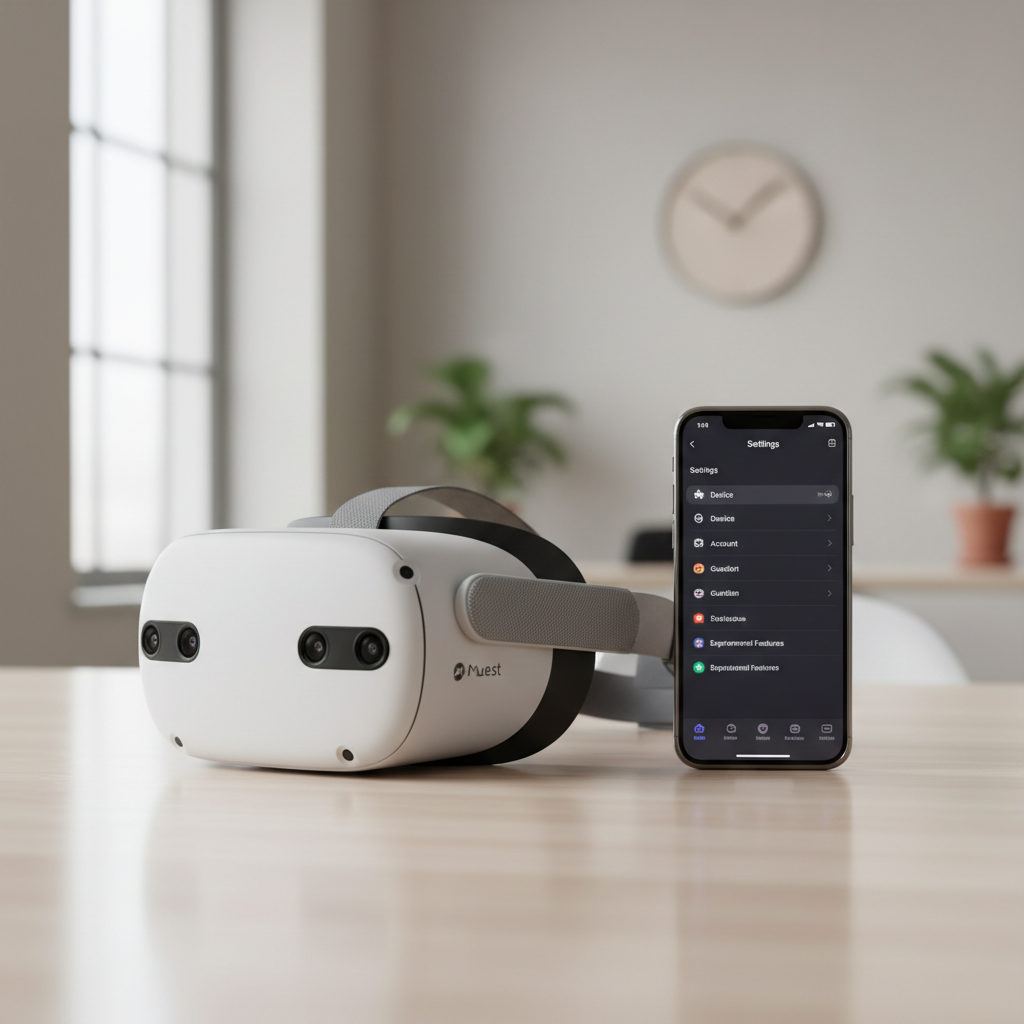
What Developer Mode does on Quest 3 (and what it doesn’t)
Developer Mode on Quest 3 enables access to features used for development and advanced device management, most notably USB debugging for ADB, and smoother workflows for testing apps outside the public Quest Store.
It’s also worth clearing up a common misconception: Developer Mode does not magically “unlock” paid apps, boost performance by itself, or bypass Meta policies. It mainly unlocks tooling and permissions.
- Typical reasons people enable it: sideloading with SideQuest, internal QA, Unity/Unreal testing, device automation, debugging.
- What you still need: a computer (often), a USB-C cable, and sometimes driver setup on Windows.
According to Meta documentation and developer resources, you generally need a developer-verified Meta account and a paired device for the setting to appear consistently.
Before you start: the short checklist that prevents 80% of issues
Before hunting through menus, confirm these basics. This is where most “Developer Mode missing” situations come from.
- Meta Quest app installed on your phone (same Meta account as the headset).
- Quest 3 paired in the app and visible as a connected device.
- Account verification completed (often via adding a payment method or phone verification, depending on your account status).
- Stable Wi‑Fi on both phone and headset.
- Latest app/headset updates if the toggle keeps vanishing.
If you want the fastest path, do the account verification step early, then come back to the toggle. People often do this backward and waste time.
Step-by-step: Enable Developer Mode in the Meta Quest app
This is the main flow most US users follow, and it’s still the most reliable approach in many cases.
1) Make sure your Quest 3 is paired to the app
Open the Meta Quest app, confirm your Quest 3 shows as connected. If you see “Pair a new headset,” pairing isn’t complete, and the Developer toggle may not appear.
2) Find the Developer settings
In the Meta Quest app, go to your device settings area, then look for Developer options. The exact labels can shift as Meta updates the UI, but it’s typically under the headset/device page.
3) Toggle Developer Mode on
Turn on Developer Mode, then wait a few seconds. Some accounts need a moment to sync. If it flips back off instantly, jump to the troubleshooting section below.
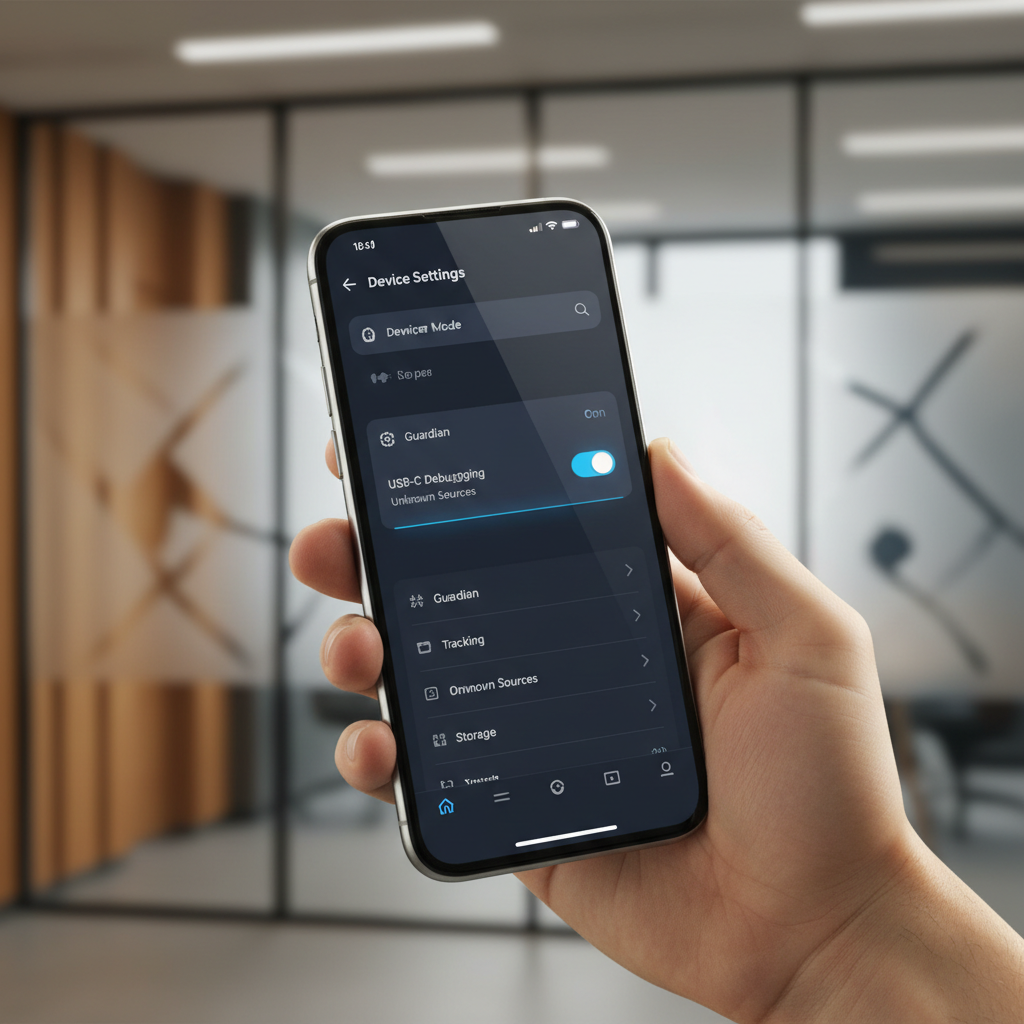
What you should see on the headset after enabling it
After you enable Developer Mode, the headset typically exposes options related to developer features, and you can proceed to USB debugging for ADB.
- USB prompt behavior: when connecting to a computer, you may get a prompt to allow USB debugging.
- Developer-related settings: depending on firmware, you might see additional toggles that were hidden before.
One practical tip: rebooting the Quest 3 after turning Developer Mode on can help if you don’t see any change right away. Not always required, but it’s a quick sanity check.
Troubleshooting: when Developer Mode is missing, greyed out, or won’t stay on
If you searched how to enable developer mode quest 3 because the toggle isn’t there, you’re not alone. The issue is usually account linkage, verification, or sync, not the headset itself.
Fast fixes that often work
- Force-close and reopen the Meta Quest app, then re-check the device settings page.
- Confirm the headset is on the same Meta account as the phone app (sounds obvious, but shared headsets cause this).
- Re-pair the headset if the app shows it as disconnected or “not nearby.”
- Update the app from the App Store / Google Play, then restart your phone.
- Restart the Quest 3 to force config refresh.
If the toggle flips off immediately
- Finish verification on your Meta account (this varies by account, and sometimes it’s tied to adding a payment method).
- Check developer organization status if you created one, and make sure your account is actually attached to it.
- Try a different network temporarily; some restrictive networks can interfere with device sync.
According to Meta support guidance in many cases, verification and proper pairing are prerequisites for Developer Mode to stay enabled, so if it keeps reverting, treat it like an account-state issue rather than a “broken toggle.”
Quick comparison table: common setups and what you need
Not everyone is enabling Developer Mode for the same reason. This table helps you line up expectations before you start installing tools.
| Goal | Developer Mode needed? | What else you’ll likely need |
|---|---|---|
| Sideload apps with SideQuest | Yes | Computer, USB-C cable, SideQuest, allow USB debugging |
| Run ADB commands | Yes | Android platform-tools, drivers on Windows, USB debugging prompt |
| Test your Unity/Unreal build | Usually | Build pipeline, signing settings, device connected for install/logs |
| Just change visual settings | Usually no | In-headset settings are enough for most users |
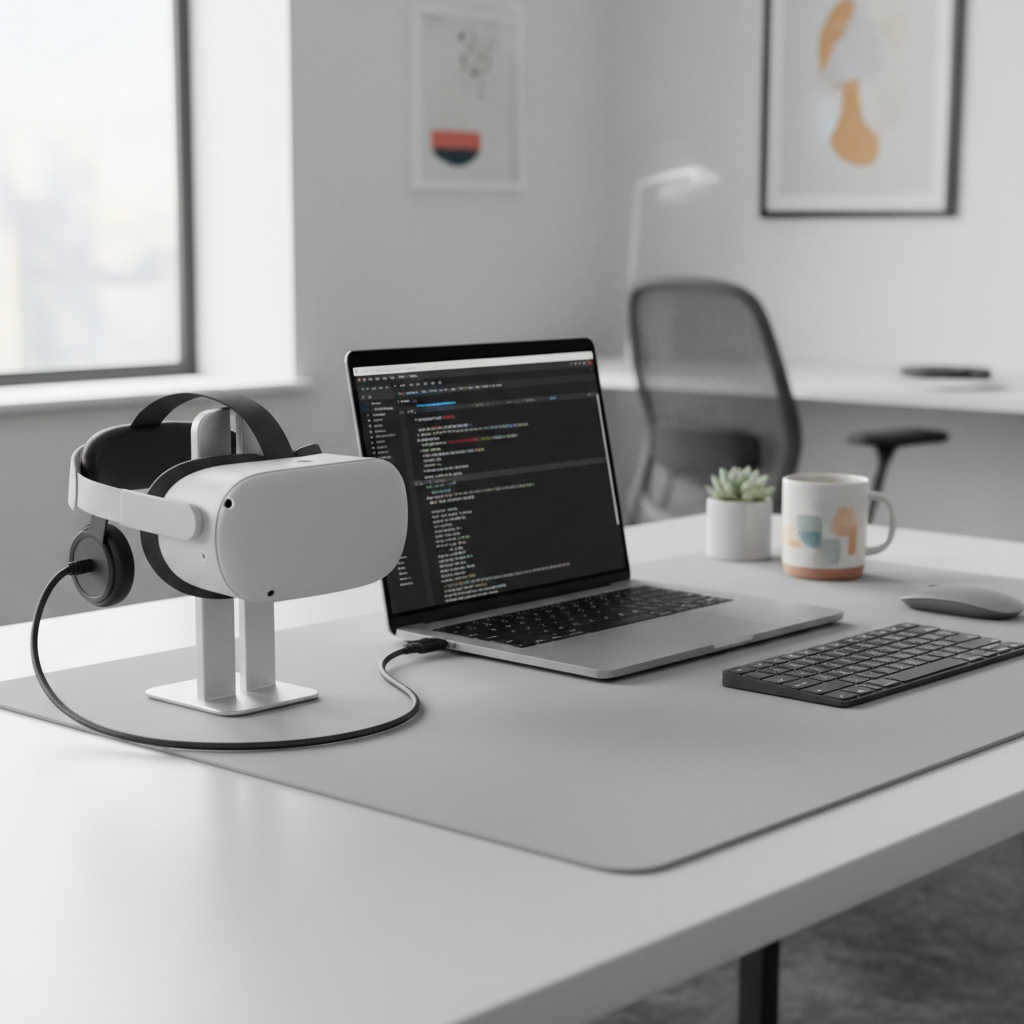
Practical next steps after you enable Developer Mode
Once the toggle is on, the most common “next step” is connecting to a computer for sideloading or debugging. This is where people get stuck again, so keep it simple.
If you plan to use SideQuest
- Install SideQuest on your computer, then connect Quest 3 with a reliable USB-C cable.
- Put on the headset and look for a USB debugging prompt, then allow it.
- If SideQuest shows “not detected,” the cable or drivers are often the real issue, especially on Windows.
If you plan to use ADB
- Install Android platform-tools (ADB), then verify your device appears in adb devices.
- When prompted in-headset, allow debugging, and consider checking “always allow” for your personal computer.
Security note: only allow USB debugging for computers you trust. If you’re using a shared or public machine, it’s smarter to deny the prompt and switch devices.
Common mistakes that waste time (and how to avoid them)
- Assuming the toggle lives in the headset menus: many users must enable it from the phone app first.
- Pairing with the wrong Meta account: this happens with families, workplaces, or secondhand headsets.
- Using “charge-only” USB cables: the headset charges but never connects for data, so debugging never shows up.
- Skipping restarts: a quick reboot on phone and headset often clears stale sync states.
- Trying random APKs: sideloading untrusted files can create security and stability risks, stick to sources you trust.
If your goal is learning how to enable developer mode quest 3 for sideloading, don’t ignore the cable and driver layer. That’s where the “it still doesn’t work” feeling usually comes from.
When to seek help (and what to prepare)
If Developer Mode still won’t appear after verification, pairing, updates, and restarts, it’s reasonable to contact Meta support or consult a developer-savvy IT/admin person, especially in managed or enterprise environments.
- Have your headset serial info and Meta account email ready.
- Note whether the toggle is missing, greyed out, or flips off, those symptoms matter.
- List what you tried, including app version and whether the headset shows as paired.
In some setups with workplace policies, device management tools can also restrict developer features, so if this is a company headset, ask your administrator before you keep forcing changes.
Key takeaways
- Developer Mode depends on account verification and pairing, not just the headset model.
- If the toggle is missing, fix Meta Quest app ↔ Quest 3 linkage first.
- After enabling it, the next real hurdle is often USB debugging + a data-capable cable.
If you came here for how to enable developer mode quest 3, aim for a clean sequence: verify account, pair device, toggle on, reboot if needed, then connect for debugging. It’s boring, but it works more often than “random clicking.”
If you want, set aside ten minutes and do it in one sitting, bouncing between steps is when sync issues feel worse than they are.
FAQ
Why can’t I find Developer Mode in the Meta Quest app for Quest 3?
Usually the headset isn’t fully paired to the app, or your Meta account verification is incomplete. Re-check that the app shows your Quest 3 as connected, then confirm your account status.
Do I need a developer organization to enable Developer Mode on Quest 3?
In many cases, yes, some form of developer enrollment or verification is expected before the toggle stays enabled. The exact flow can vary as Meta updates its policies and tools.
My Developer Mode toggle turns on, then immediately turns off. What does that mean?
That behavior often points to an account or sync requirement not met, like verification, organization linkage, or a pairing mismatch between phone and headset accounts.
Is enabling Developer Mode on Quest 3 safe?
For most users it’s reasonably safe, but it does increase what your device allows, especially with USB debugging. Only approve debugging on computers you trust, and avoid sideloading unknown APKs.
Can I enable Developer Mode without a phone?
In many setups, the Meta Quest app is the simplest way to do it. If you don’t have a compatible phone, you may need to use another supported device or alternative account-management methods, but results vary.
Do I need a PC to use Developer Mode?
Not always, but most practical uses like ADB debugging and SideQuest sideloading rely on a computer connection. If you only want the toggle on “just in case,” a PC can wait.
Why doesn’t SideQuest detect my Quest 3 even after Developer Mode is enabled?
Common causes include a charge-only USB cable, missing drivers on Windows, or not accepting the in-headset USB debugging prompt. Treat it as a connection/permission issue first.
If you’re trying to get Developer Mode working for sideloading or testing builds and you’d rather not troubleshoot blind, a simple checklist-driven setup service or guided walkthrough can save time, especially when pairing and account verification get finicky.