
how to fix controller not working on pc usually comes down to three things: the connection path (USB/Bluetooth/dongle), the driver stack in Windows, or the game’s input settings fighting each other.
If you want the fastest win, don’t start by reinstalling everything, start by identifying where the controller stops being recognized: Windows, Steam, or the game itself, that single distinction saves a lot of time.
Below is a practical flow that mirrors how support teams typically triage it, you’ll get quick checks first, then deeper fixes only if you need them.
Start here: narrow down where the failure happens
Before changing settings, confirm what “not working” really means in your setup, because a controller can be “connected” but still not sending input to the right app.
- Windows doesn’t see it at all: no new device, no sound, nothing in Bluetooth or USB devices.
- Windows sees it, but games don’t: it shows up in Device Manager, but your game ignores it.
- It works in menus, not in-game: common with Steam Input conflicts, wrong in-game device, or “controller support” toggles.
- Random disconnects: power management, bad cable, weak Bluetooth, or a flaky USB port/hub.
Quick test that avoids guesswork: open Windows Game Controllers panel, press Win+R, type joy.cpl, then check whether button presses register.
If inputs show up in joy.cpl, the controller and Windows are mostly fine, your issue is usually Steam, the game, or a competing driver layer.
Connection fixes (USB, Bluetooth, and wireless dongles)
This is the most boring section, but it solves a surprising number of cases, especially when the controller “used to work” and suddenly doesn’t.
USB: cables, ports, hubs
- Try a different USB cable, and if it’s USB-C, try a cable known to support data, not just charging.
- Plug directly into the PC, avoid front-panel ports and unpowered hubs for testing.
- Switch ports, ideally a USB 2.0 and a USB 3.x port, some controllers are picky with certain chipsets.
Bluetooth: pairing and signal reality
- Forget the device in Windows Bluetooth settings, reboot, then pair again.
- Move the controller closer, and reduce interference from crowded USB 3.0 ports near the Bluetooth antenna.
- If you use a Bluetooth USB adapter, try a short USB extension so the adapter is away from the metal PC case.
Wireless dongles (Xbox adapter, 2.4GHz receivers)
- Try a different port, and avoid connecting the receiver through a hub while troubleshooting.
- Update the receiver firmware if the vendor provides a utility, compatibility fixes often land here.
According to Microsoft Support, Xbox controllers on Windows can require firmware updates for connectivity and performance improvements, especially across different Windows versions.
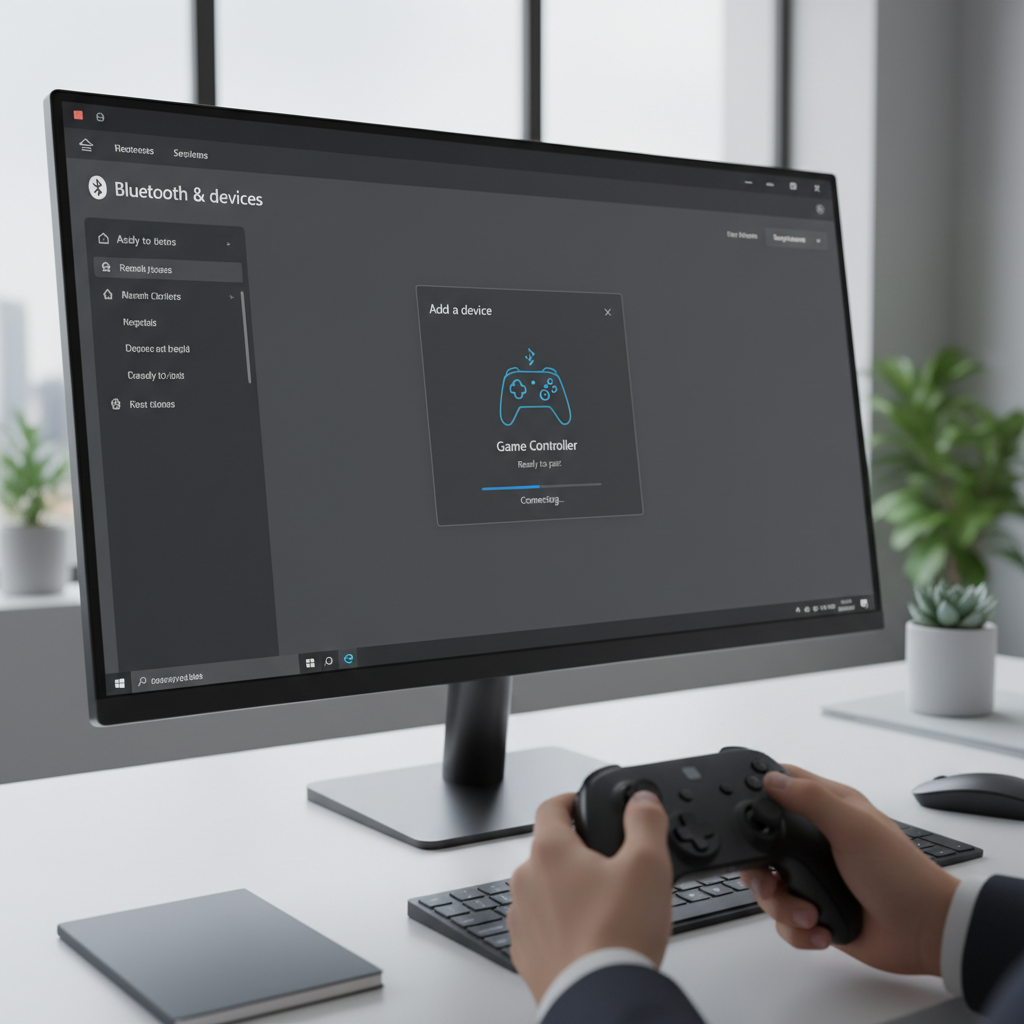
Windows-side fixes: drivers, Device Manager, and power settings
If you’re searching how to fix controller not working on pc, this is where the “it connects but nothing happens” cases usually live, Windows recognizes the hardware, but the driver layer is messy.
1) Check Device Manager for errors
Open Device Manager and look under Human Interface Devices, Bluetooth, Sound, video and game controllers, and Xbox Peripherals (if present).
- If you see a yellow warning icon, right-click and view Properties, note the error code.
- Try Uninstall device (tick “Delete the driver software” only if you know it’s a bad third-party driver), then reboot.
- Run Windows Update, optional driver updates sometimes include controller-related fixes.
2) Stop USB power saving from cutting the controller off
- Device Manager → Universal Serial Bus controllers → USB Root Hub (and Generic USB Hub) → Power Management.
- Uncheck Allow the computer to turn off this device to save power for testing.
Also check Control Panel → Power Options → Advanced settings → USB settings → USB selective suspend, setting it to Disabled can help with intermittent dropouts, though battery life on laptops may take a hit.
3) Make sure Windows is reading the right “game controller”
If you have a wheel, HOTAS, virtual controller driver, or remote desktop software installed, Windows might reorder devices.
- Temporarily unplug other controllers.
- Disable virtual devices you don’t use (carefully), then retest joy.cpl.
Steam Input, Xbox app, and game launcher conflicts
Many “controller not working” tickets come from two layers trying to help at once, Steam Input translating, while the game expects raw XInput, or vice versa.
If you play on Steam
- Steam → Settings → Controller: confirm your controller is detected.
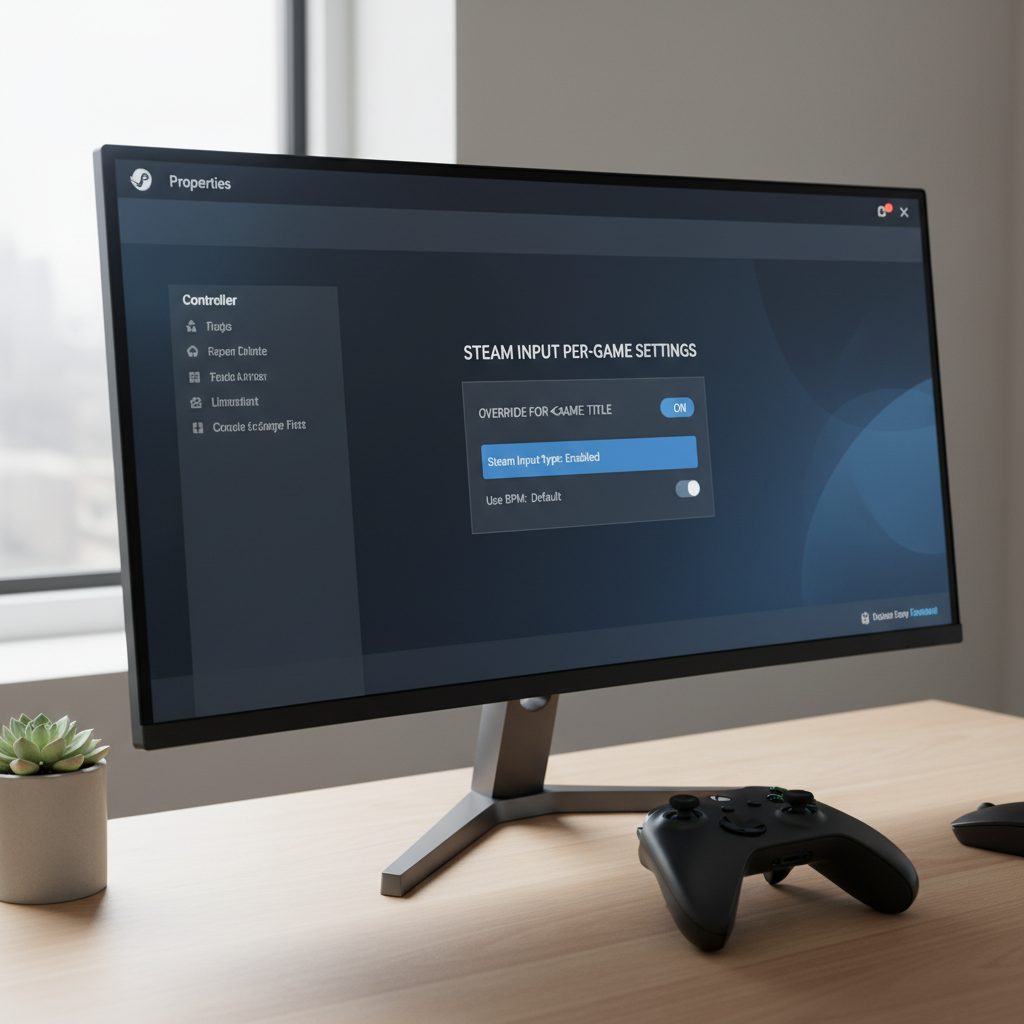
- For the specific game: Properties → Controller, try toggling between Use default settings, Enable Steam Input, and Disable Steam Input.
- If the controller works in Steam Big Picture but not in the game, it’s often this per-game toggle.
If you use an Xbox controller + Xbox app / Game Pass games
- Update the controller firmware via the Xbox Accessories app when available.
- Close Steam completely while testing a Microsoft Store/Game Pass title, Steam can still hook controller input in the background.
If you use DS4/third-party mapping tools
Tools that emulate an Xbox controller can solve compatibility, but they also create duplicate devices.
- Pick one tool, avoid stacking DS4Windows plus Steam Input plus in-game remappers.
- If you see double inputs, disable one layer, then retest.
Fast self-check checklist (use this before deep fixes)
Run this in order, stop when the controller starts working again, this keeps the fix proportional to the problem.
- Test in joy.cpl to see if Windows receives input.
- Try another USB port or re-pair Bluetooth.
- Close background apps that hook input: Steam, DS4 tools, overlays, remote desktop apps.
- Try the controller in a different game to isolate a game-specific setting.
- Update Windows, then update controller firmware if supported.
- Device Manager: uninstall the device, reboot, re-test.
If you only remember one thing: confirm whether Windows sees clean input first, then adjust Steam/game layers second.
Common scenarios and what usually fixes them (quick table)
Different symptoms point to different layers, this table is a decent shortcut when you don’t want to read forums for hours.
| Symptom | What it often means | What to try |
|---|---|---|
| Controller lights up but no input in joy.cpl | Bad cable/port, driver not loading | Swap cable/port, uninstall device in Device Manager, reboot |
| Works in Steam menus, not in-game | Steam Input vs in-game input mismatch | Toggle Steam Input per-game, check in-game controller setting |
| Double input or drifting menus | Two input layers active | Disable DS4/mapper or Steam Input, keep one remapper only |
| Disconnects every few minutes | USB power saving or weak Bluetooth | Disable USB power saving, re-seat dongle, move BT adapter |
| Only one specific game won’t detect it | Game setting or outdated game support | Check game controller setting, update game, try windowed mode |
Mistakes that waste time (and what to do instead)
When people ask how to fix controller not working on pc, they often jump to the most destructive option, then end up with new problems.
- Reinstalling Windows too early: try joy.cpl, Device Manager cleanup, and Steam/Input toggles before nuclear options.
- Installing three controller tools at once: you want one translation layer, not a stack.
- Assuming “connected” means “supported”: some games only accept XInput, others need a setting flipped, confirm what the game supports.
- Ignoring firmware: for supported controllers, firmware updates can fix pairing and dropouts.
According to Valve (Steam Support), Steam Input can be enabled or disabled per game, and mismatched settings can affect whether a title detects a controller correctly.
When it’s time to seek help (or replace hardware)
If Windows never detects the controller across multiple cables/ports/PCs, hardware failure becomes more likely, especially if the USB port on the controller feels loose or Bluetooth pairing repeatedly fails.
- Test on another PC or console, if possible, this separates PC configuration from controller issues.
- If you see repeated disconnects only on one PC, consider a different Bluetooth adapter or a powered USB hub.
- For stick drift or button faults, calibration and deadzone settings may help, but persistent issues often need repair; if you’re under warranty, contacting the manufacturer support is usually the safest path.
If you’re in a managed environment (work PC) or you rely on anti-cheat games, be cautious with third-party driver tools, it may be smarter to consult IT or the game support channel to avoid account flags.
Conclusion: the reliable path back to working input
Most fixes are less dramatic than they feel in the moment: confirm Windows receives input in joy.cpl, clean up the connection and driver layer, then make sure Steam Input or a mapper tool is not fighting the game’s expectations.
If you want an easy next step, do two things now: test joy.cpl, then toggle Steam Input for the specific game and re-launch, those two checks resolve a big chunk of “connected but not working” cases without extra software.
FAQ
- Why does my controller work in Steam but not in the game?
That usually points to a Steam Input setting mismatch or the game expecting a different input API. Try changing the game’s Steam Controller setting (Enable/Disable Steam Input) and restart the game. - How do I know if Windows is detecting my controller correctly?
Open joy.cpl and press buttons. If you see live input there, Windows is receiving signals, focus on Steam/game settings next. - My controller is connected over Bluetooth but keeps disconnecting, what helps?
Common culprits are weak signal and USB 3.0 interference. Move the Bluetooth adapter closer using a short extension, and disable USB power saving for testing. - Do I need DS4Windows for a PlayStation controller on PC?
Sometimes. Many games support it natively through Steam Input, others expect XInput and need a mapper. If you use Steam, try Steam Input first, adding DS4 tools can create duplicates. - Why am I getting double inputs or fast menu scrolling?
Two devices or two layers are active, like Steam Input plus a mapper. Turn one off so only a single virtual controller reaches the game. - What if the controller shows up in Device Manager but not in games?
That’s often a launcher or game configuration issue. Test another game, toggle Steam Input, and check in-game controller support settings. - Is reinstalling controller drivers safe?
Usually, yes, if you uninstall the device in Device Manager and reboot so Windows reinstalls it. Be cautious with unofficial driver packs, they can introduce new conflicts.
If you’re still stuck after the checklist, it may help to write down what works and what doesn’t (joy.cpl result, connection type, Steam Input on/off, which games fail), then share that when contacting game support or the controller maker, you’ll get better answers faster.