
how to record ps5 gameplay to a USB drive comes down to two things: making sure PS5 is set to capture the way you want, and using a USB drive the console can actually write to.
If you have ever hit the Create button, recorded a great moment, then realized you cannot easily move it off the console, you are not alone. USB export is still one of the most practical ways to back up clips, edit on a computer, or hand footage to someone else without uploading anything.
This guide walks through the realistic options, the settings that quietly break captures, and a couple of “why is my USB not showing up” fixes. I will keep it focused on what works on real PS5 setups, not perfect lab conditions.

What PS5 can record, and what “to USB” really means
On PS5, you can record gameplay as video clips, and you can also capture screenshots. The console stores those captures in its Media Gallery first, then you export copies to a USB drive. In other words, you are not recording directly onto USB in most cases.
That detail matters because if your internal storage is tight, long clips can fail or end early. It also explains why your clip exists on the PS5 even if the USB copy fails.
Typical capture limits you should plan around
- Clip length: You choose a duration (recent gameplay) or start/stop manual recording. Longer recordings take more internal space.
- Resolution: PS5 can record at higher quality than older consoles, but the exact options depend on your capture settings and system updates.
- Blocked scenes: Some apps and certain content can restrict recording due to licensing rules.
According to Sony Interactive Entertainment (PlayStation Support), features such as capture and sharing can be restricted in some scenes or apps, and system settings affect what gets saved.
Before you start: USB drive requirements that trip people up
Most “PS5 won’t save to USB” problems come from the drive format or how the drive is plugged in. The PS5 is picky, and it does not always explain what is wrong.
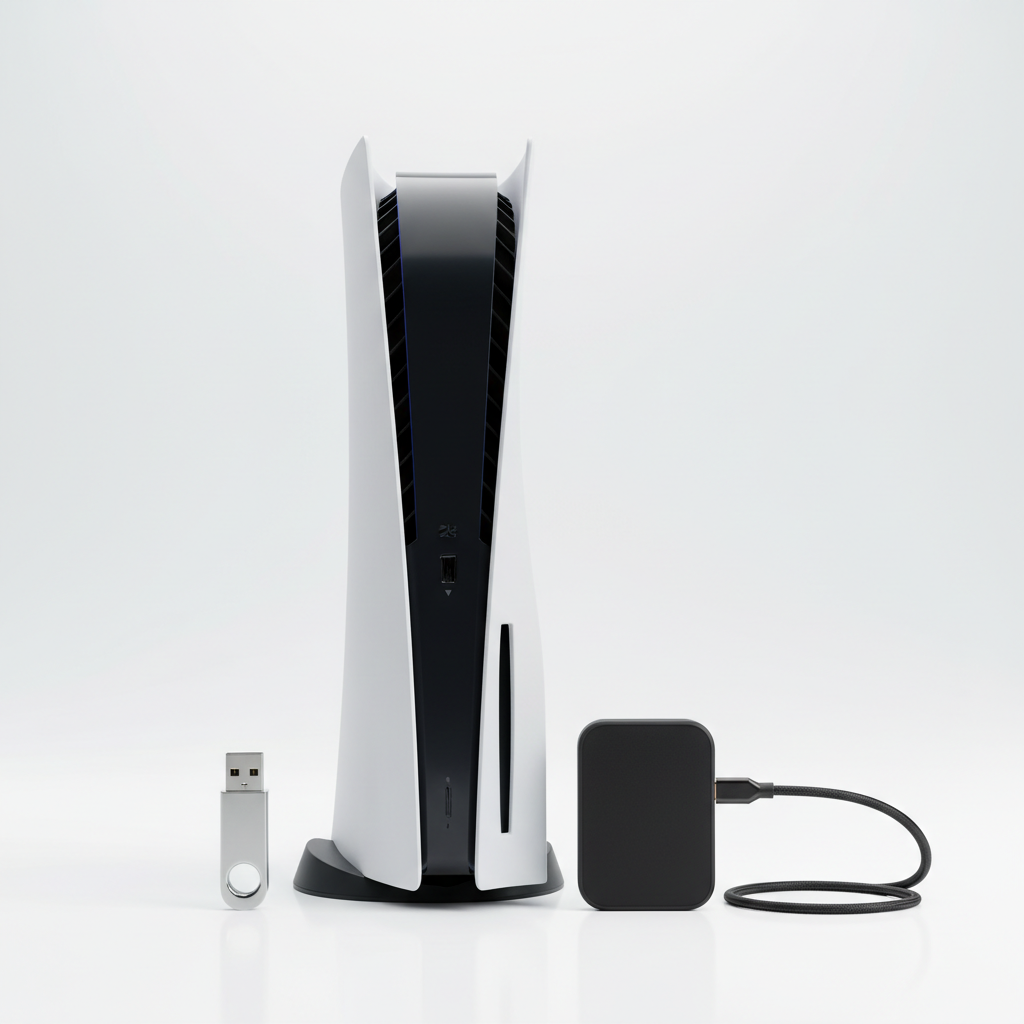
USB checklist (quick pass/fail)
- File system: Many USB drives need to be formatted as exFAT or FAT32 for PS5 media export. exFAT is usually the easier choice for larger video files.
- Enough free space: A short 1080p clip is manageable, but multiple clips add up fast.
- Plugged into a PS5 USB port directly: Hubs sometimes work, sometimes cause random disconnects.
- Stable drive: Old or bargain drives can fail mid-copy, which looks like a PS5 issue.
If you are deciding what to buy, here is a practical comparison.
| Option | Pros | Cons | Best for |
|---|---|---|---|
| USB flash drive | Cheap, portable, simple | Can be slow, quality varies a lot | Quick exports, short clips |
| External SSD (USB) | Fast transfers, more reliable | Costs more | Frequent exports, longer recordings |
| External HDD (USB) | Large capacity per dollar | Slower, bulkier, more fragile | Archiving lots of clips |
Set up PS5 capture settings so your clips match your goal
Before focusing on how to record PS5 gameplay to a USB drive, confirm your capture settings, because they decide what you can export later. This is where people accidentally record the wrong length, or wonder why their voice is missing.
Settings worth checking (once, then forget)
- Shortcuts for the Create button: Choose whether it opens the create menu or starts a clip quickly.
- Length of recent gameplay video clip: Set a default duration you actually use.
- Video clip format: Some formats are more editing-friendly; others compress more.
- Include your mic audio: Useful for commentary, but also easy to forget you enabled.
- Include party audio: This may require consent and settings from other players depending on party options.
If you plan to edit on PC or Mac, pick settings that keep quality decent without creating enormous files. If the goal is just sharing highlights, smaller files feel less painful.
Step-by-step: record gameplay, then export it to USB
This flow is what most people mean by “record to USB” on PS5: you record to the console, then copy the clip to your drive.
1) Record the clip
- Press the Create button.
- Select Save Recent Gameplay for a past moment, or choose Start New Recording to capture from now until you stop.
- When done with manual recording, press Create again and stop the recording.
2) Find it in Media Gallery
- Open Media Gallery.
- Locate your clip by game, date, or “All.”
3) Export to USB
- Insert the USB drive.
- In Media Gallery, highlight the clip, open the options menu, then choose Copy to USB Drive.
- Wait for the transfer to finish before pulling the drive.
Small detail that saves frustration: copy in batches, not hundreds at once. If a single file causes a transfer error, you will find it faster.
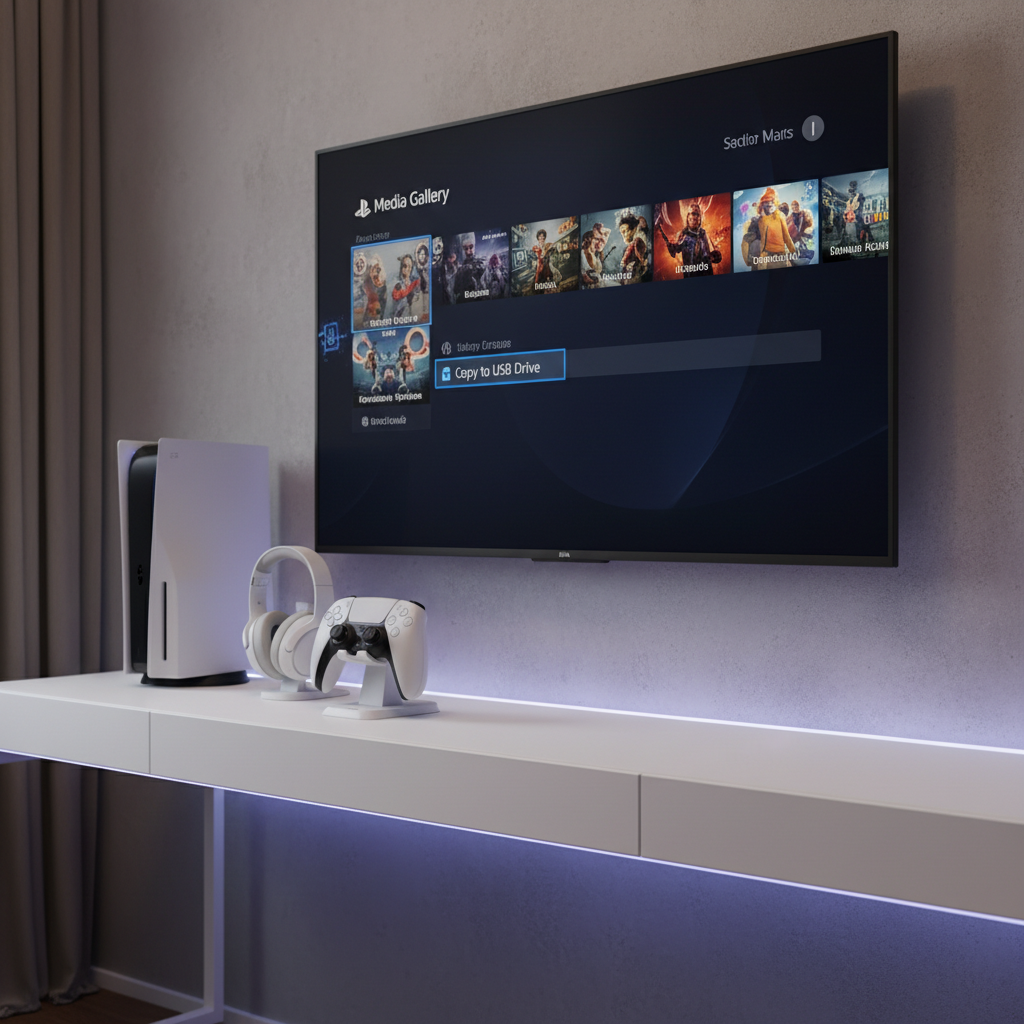
Fast self-test: why you cannot export or the USB does not show up
If the PS5 does not recognize the drive, or “Copy to USB drive” is missing, it usually fits one of these buckets.
- Drive format mismatch: Try exFAT if you are hitting file size limits or weird failures.
- Not enough internal storage: The clip saves to the console first, so low space can break recording or clip finalization.
- Using the wrong USB device type: Some drives set up for extended storage behave differently than plain media storage.
- Capture not created: You might be in a restricted scene, or you saved a screenshot instead of a video.
- Transfer interrupted: Loose cable, flaky port, or an unreliable flash drive.
According to Sony Interactive Entertainment (PlayStation Support), USB storage devices have specific format and usage requirements, and not every configuration is supported the same way.
Practical workflow tips if you want cleaner files for editing
Copying clips is only half the job. If your real goal is TikTok edits, YouTube uploads, or sending footage to an editor, a little structure helps.
File organization that stays sane
- Create folders on your computer by Game and Date after exporting.
- Rename clips right away, while you still remember what happened.
- Keep raw exports untouched, then edit a copy so you can revisit later.
Quality vs size decisions that feel “worth it”
- If you rarely zoom in or crop, 1080p can be plenty for highlights.
- If you plan heavy edits, higher quality clips tend to hold up better, but you will feel it in storage and transfer time.
- Test with one short clip, export it, open it on your computer, then commit to a setting.
Common mistakes (and what to do instead)
- Pulling the USB drive immediately: Wait for the copy to complete, then remove it safely from the PS5 side if prompted.
- Assuming USB equals backup: Keep two copies if the footage matters, drives can fail without warning.
- Recording voice without checking permissions: Party audio and voice capture can involve consent and settings; review party privacy options before publishing.
- Trying to fix everything by reformatting: Reformatting wipes the drive. Confirm the problem first, and back up what you need.
When you may need extra help or an alternate method
If you still cannot export after trying a known-good exFAT drive and a direct USB port, it is reasonable to suspect a system software issue or a failing USB device. In that situation, PlayStation Support documentation and official troubleshooting steps are the safest next move, because menu paths and supported formats can change after updates.
If you need longer recordings with fewer limits, or you want “live” capture with overlays, you may be better served by a capture card and a PC workflow. That is more setup and cost, but it solves different problems than the built-in recorder.
Conclusion: a simple plan that usually works
For most setups, how to record PS5 gameplay to a USB drive is straightforward once you stop treating USB as the recording destination. Record to Media Gallery, confirm the clip exists, then export to a properly formatted exFAT drive.
If you want one action to take today, format a reliable USB drive as exFAT, run a 30-second test recording, then export it and verify playback on your computer. That quick loop catches 90% of issues before you commit to a longer session.
FAQ
Can you record PS5 gameplay directly to a USB drive?
In many everyday cases, PS5 records to internal storage first, then you copy the clip to USB. If your goal is “no internal storage used,” a capture card workflow is often closer to that outcome.
What format should my USB drive be for PS5 video exports?
exFAT and FAT32 are common formats PS5 can work with for media export, and exFAT is usually more convenient because large video files can exceed FAT32 limits.
Why is “Copy to USB Drive” missing in Media Gallery?
Most often the USB drive is not recognized, not formatted in a compatible way, or you are viewing content that cannot be exported the same way. Try another drive if you want a quick confirmation.
Why did my PS5 recording stop early or not save?
Low console storage, restricted scenes, or changing capture settings mid-session can cause clips to end unexpectedly. Checking free space and doing a short test recording before a long session helps.
Does exporting to USB reduce video quality?
Exporting is typically a copy of the recorded file, so quality should match what PS5 captured. If quality looks worse on a computer, the issue is often playback software, editing import settings, or a lower capture quality setting.
Can I record party chat and export it with the clip?
Sometimes yes, but it depends on your capture settings and party audio permissions. If you plan to publish, review privacy settings and get consent where appropriate.
What is the easiest way to move PS5 clips to a PC besides USB?
Some users rely on cloud sharing or the PlayStation mobile app workflow, but availability varies by region and account setup. USB stays the most predictable offline method.
If you are trying to build a repeatable workflow, not just export one clip, it helps to pick one reliable drive, lock in capture settings you like, and do a quick test every time PS5 gets a major system update so surprises do not show up mid-recording.